Introduction to AI Assistant
One of myReach's core features is its powerful AI Assistant. It's the conversational interface to your organisation’s entire knowledge ecosystem. Unlike standard AI tools that draw from the general internet, myReach's Assistant is grounded in your specific data.
It acts as an intelligent internal consultant, capable of retrieving information, synthesising complex documents and providing context-aware insights from your files, notes, websites and integrated cloud services.
Think of it as ChatGPT, but with a memory function on your things. It can answer anything about your knowledge (ie. the data you've saved or integrated in your Knowledge Base).
Ask anything about your saved items. Use it to get more done and work smarter, not harder.
How it works
The Assistant uses advanced language models to understand your queries, analyse the context of your saved data and retrieve relevant information from it.
It doesn't just "search" for keywords; it understands the context and relationships within your data to provide direct, synthesised answers.
🔑 The "Learning" Process
For the Assistant to provide accurate answers, it must first "learn" the data.
-
Automatic Learning: When you save a file or website, myReach automatically begins processing it.
-
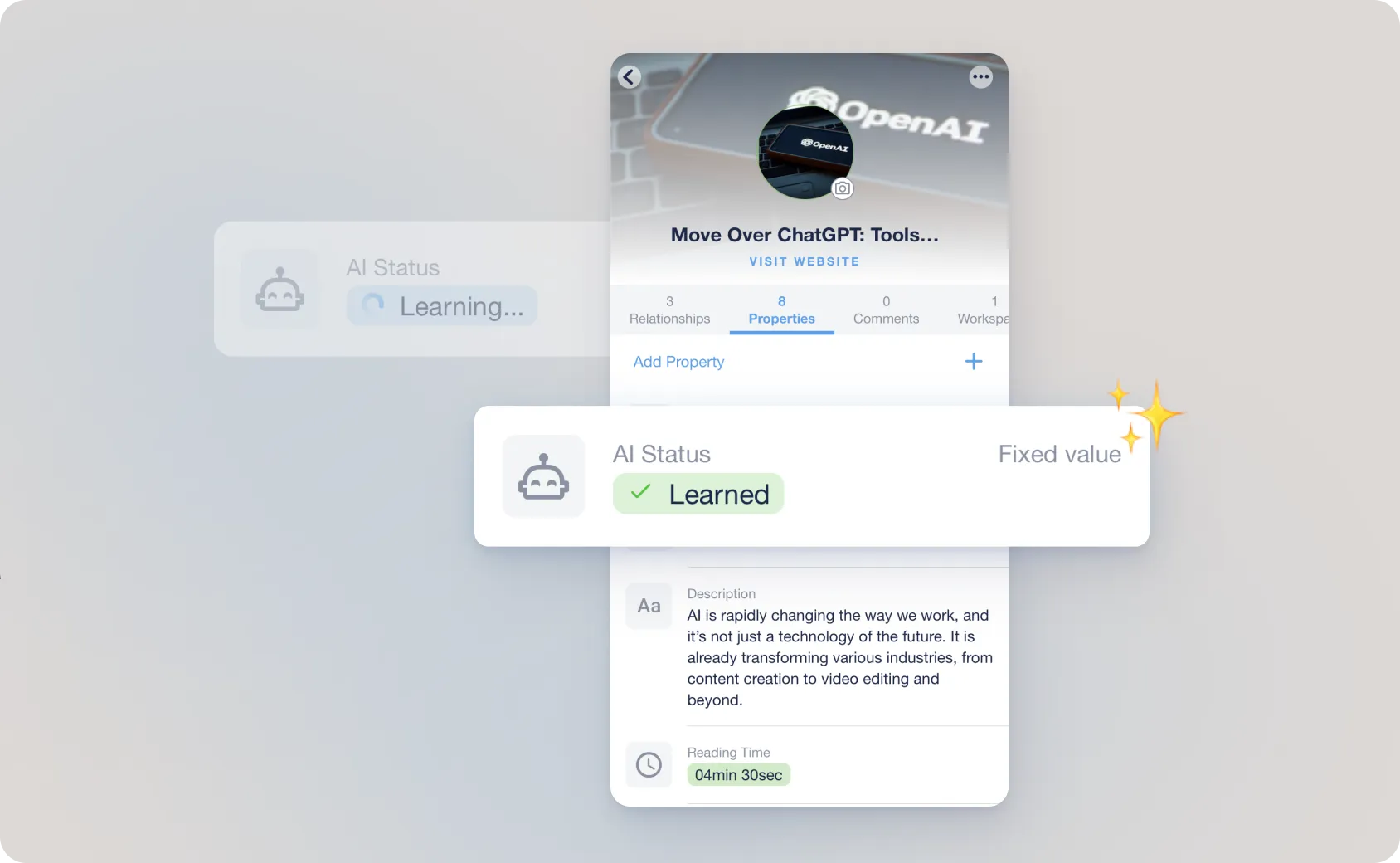
AI Status: You can verify if a piece of information is ready for the Assistant by checking its AI Status (e.g., "Learned") in the Node’s Properties tab.
Limitations
-
Learning Requirement: The AI Assistant can provide information about a node, but it can only do so if it has successfully learned that information. Nodes are learned automatically when you save them to myReach. You can see the AI status of each node (whether it’s been learned or not) when you’re in the specific node, in the Properties Tab.
-
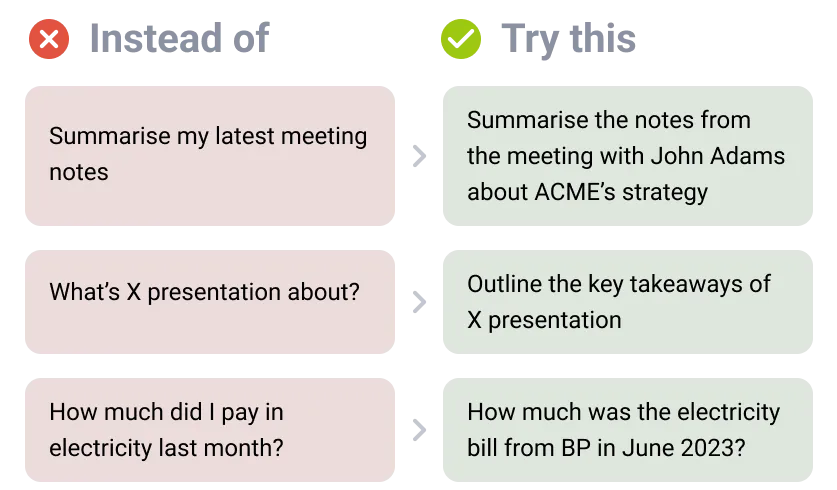
Question Format: The AI Assistant is smart, but it can’t get into your brain (yet!). It needs context and specific questions to understand what you’re looking for. The more precise your questions are, the better the answers will be.
-
Monthly Question Limit: With the Pro plan, you can ask the AI Assistant a maximum of 2,500 questions per month. If you need to increase the limit, you can upgrade your account or contact us at contact@rea.ch.
Chat Functions
Starting a Conversation
You can initiate a chat via the Assistant icon in the left sidebar. You will see the question "What can I help you with?", with a textbox beneath where you can ask your question. Every new chat offers a high degree of customisation to ensure the AI has the right focus. There are four buttons to help you customise your experience:
-
Search Strategy:
Toggle between Efficient Search (for quick answers), Deep Search (for context-heavy queries), Web Search (for added insights from the web) or Full Document Search (to drill into a single file). -
Workspace Filter:
Narrow the AI's scope to specific Workspaces (e.g., just the Legal and Finance departments). By default, it will otherwise be set to "All Workspaces". -
Upload:
Add documents on the go and ask questions about it. Force the AI to focus on particular files for immediate analysis. -
Node Filter:
Select specific nodes from your Knowledge Base, that you want to ask questions about. The AI will search through the selected nodes, and their relationships.
Multiple Conversations
Organise your work by maintaining separate chat threads for different projects or themes. You can see the different conversations on the left sidebar.
-
Context Preservation:
Each chat maintains its own "memory", allowing you to ask follow-up questions and build upon previous answers without mixing different topics. -
Persistent Threads:
Refer back to past insights and data retrievals at any time. Build on previous messages and ask follow-up questions as needed.
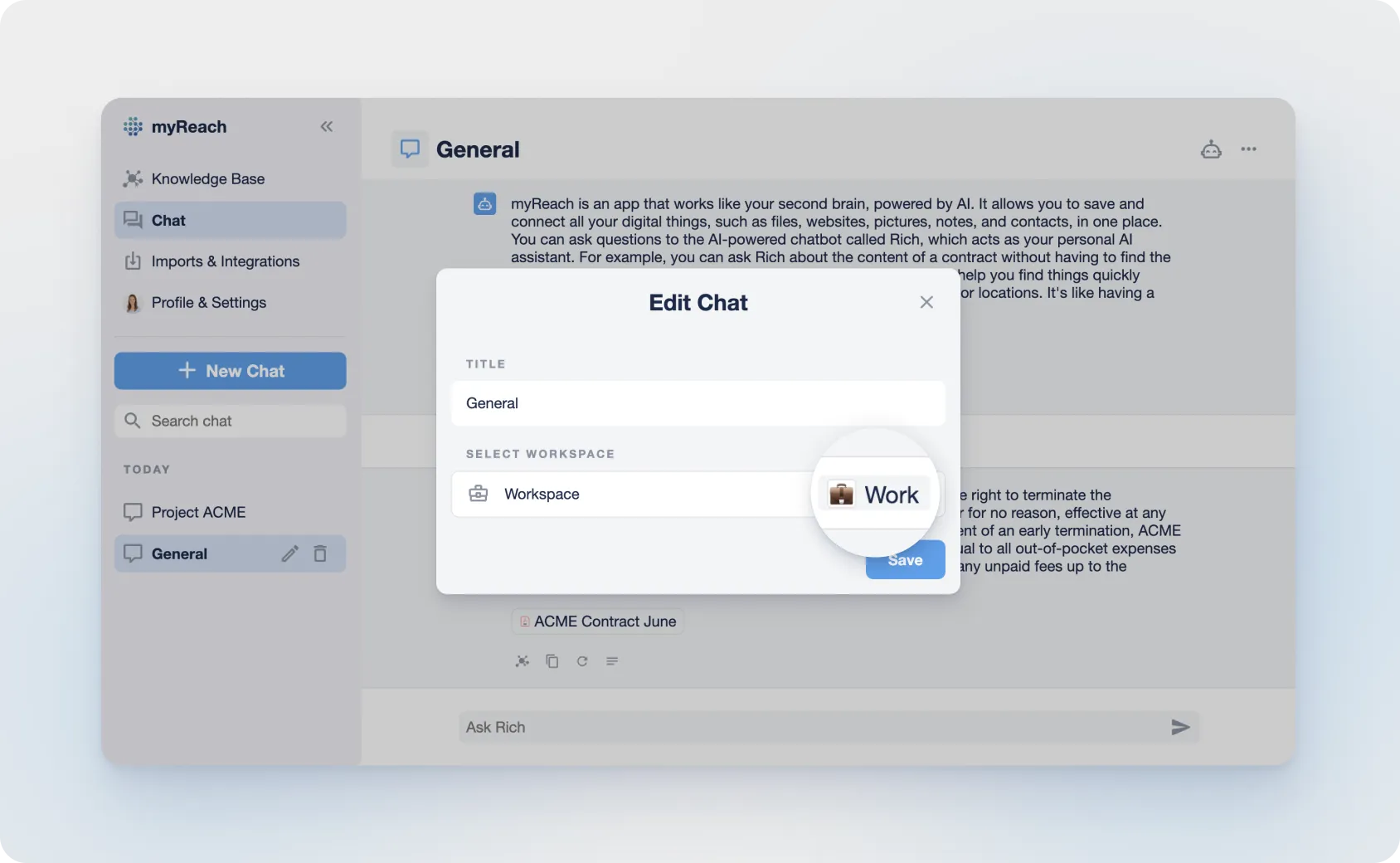
To change the name of any conversation, click on the Chat name at the top of the screen and modify the chat name and Workspace selection accordingly.
Advanced Capabilities
-
Direct Synthesised Answers: Receive clear, cited explanations instead of just a list of matching documents. You can also direct the chat as to how you want to receive the answer, whether in bullet points, short text, etc.
-
In-Text References: Every answer provided by the Assistant includes direct links to the source files, ensuring full transparency and fact-checking.
-
Creative Mode: Switch from factual retrieval to brainstorming mode for drafting documents, creating summaries, or generating new ideas based on your data. Click here to find out more.
-
Custom Prompts: Fine-tune the Assistant’s Persona, Tone and Instructions to align with your company's official communication standards. Click here to find out more.
-
Clear Chat: If you want to clear the chat history of a particular conversation, you can select the “Clear Messages History” option in the Chat options (3 dots at the top right corner of the chat page).
-
Delete Chat: You can delete the chat using the “Delete Chat” option available next to the chat name or from the Chat options list.
Chat about a specific Node
You can chat directly about a specific node from within that Node.
No need to open the Chat to ask questions, do it straight from the node page, whether it’s a website, article, tag, note or anything you’ve saved.

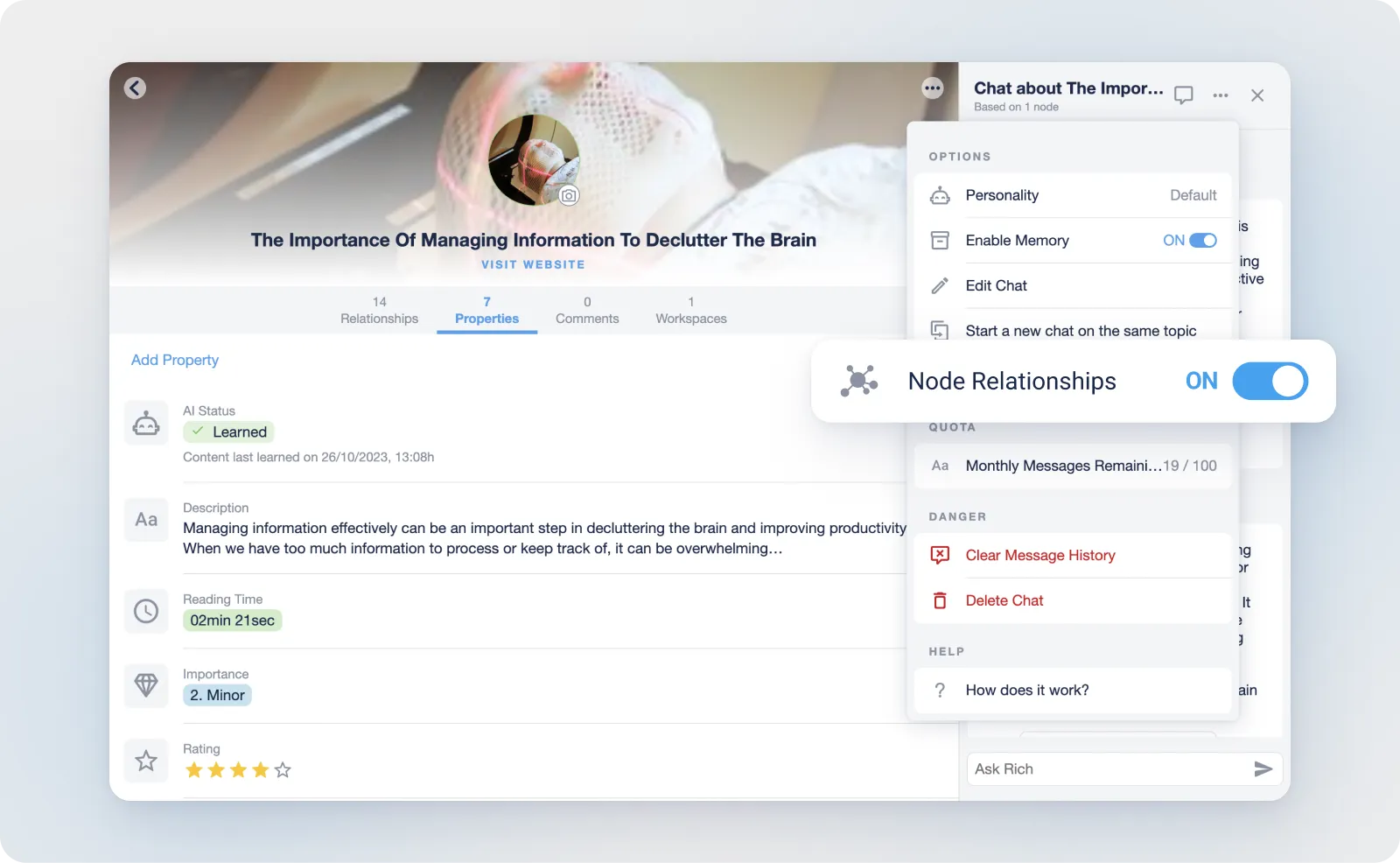
All you have to do is click on the message icon on the top right of the screen, and the Chat appears. You can then ask the AI Assistant about that specific node and all its direct relationships.
⚠️ The “Node Relationships” toggle determines whether the Chat is based solely on the Node, or also on its relationships:
Node Relationships = ON ➡️ Chat about the Node & directly related Nodes
Node Relationships = OFF ➡️️ Chat only about the specific Node’s content
Chat with Search
You can chat directly about the nodes you have searched using filters / advanced search or by text.
Just click on the message icon on the top right of the screen, and the Chat appears. You can ask the AI Assistant about all the nodes in the search results list.
If you update your search, the conversation will be updated to reflect your new search terms. The same is notified in the chat wherever there is a change in search criteria.
Filter through Workspaces

Choose which workspace you want to search and answer from...
-
to get more specific answers
-
for a faster response time
-
to organise your conversations
Use Cases
You can use the AI Assistant for a wide range of tasks, ultimately saving you time on manual retrieval. These include:
- Obtaining insights from research
- Analysing contracts & documents
- Finding information from files you thought were lost
- Summarising articles
- Answering follow-up questions
- Recalling specific information and deep-diving into the details
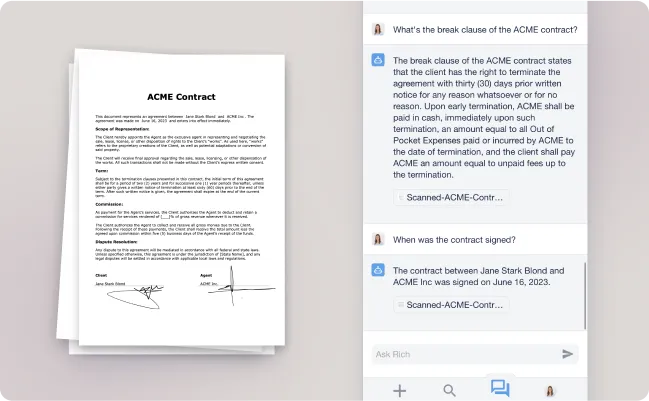
Information Retrieval: Ask about any piece of content you’ve saved (documents, articles, websites, notes, etc.) and instantly receive relevant information.
Summaries: Request concise summaries of lengthy articles or documents, allowing you to quickly grasp key points without reading the entire content.
Insights and Analysis: Get insights based on your saved data, helping you make informed decisions and draw conclusions.
Content Recall: Easily retrieve contacts, notes and recommendations from your stored data, saving you time and effort.
Learning Support: Use it to reinforce your learning by asking questions about your study materials, lecture notes, and research findings.
Contextual Answers: Get answers based on the context and relationships between your saved items, making your knowledge interactions more comprehensive.
Curated Content: Turn the answers into notes that automatically link back to the original sources, creating a curated collection of insights.
Research Assistance: Ask for information related to your ongoing research or projects, saving you time on manual data retrieval.
Productivity Boost: Enhance your productivity by effortlessly accessing information you need without wasting time on manual searches.
AI Assistant options
You can see the AI Assistant options by clicking the 3 dots at the top right in the chat page:
These options empower you to manage your interactions with the AI Assistant, customise your experience and access essential information about its functionality. Whether you need to check your usage, refine your conversation or learn more about its capabilities, these options provide valuable control and insights.
Enable Memory Toggle: Toggle the "Enable Memory" feature on or off as needed. When enabled, the AI Assistant will remember past interactions and context, providing a more personalised and coherent experience. Disabling it can be useful for starting fresh.
Edit Chat Option: The "Edit Chat" option allows you to modify the chat name and the specific workspaces that the AI Assistant will search through.
Monthly Messages Info: This feature keeps you informed about your usage limits. See the number of messages you still have remaining this month. The limit renews every month.
Number of chats: This feature keeps you informed about your chats limit. See the number of chats you still have remaining.
Clear Message History: Clear your chat history with the AI Assistant to maintain privacy or start a new session with a clean slate. This option helps you manage your conversation history within the AI assistant.
Delete Chat: Delete the entire chat conversation with the AI Assistant. This action can be helpful for removing sensitive or irrelevant information from the chat history.
How Does It Work: These pop-ups provide detailed information about how the AI Assistant functions and operates within myReach. This section provides insights into the AI's capabilities, learning process and best practices for optimal use.