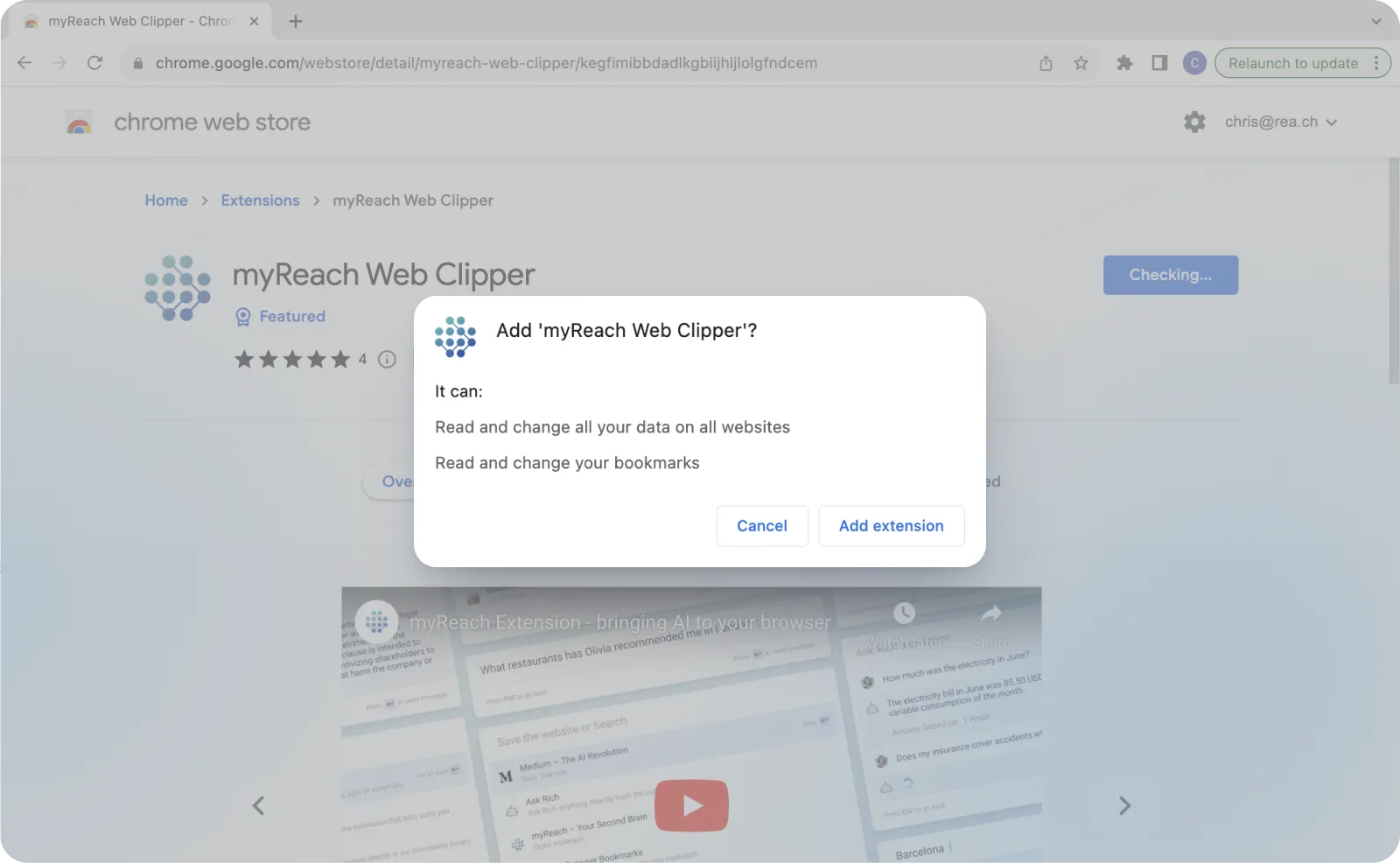
Installation & Setup
To get started with myReach, we recommend adding it across all your devices. This ensures your knowledge is always synchronised and reachable, whether you're at your desk or on the go.
📱 Mobile App
Stay connected to your Knowledge Base anywhere.
- iOS: Download on the App Store (Requires iOS 13.0 or later)
- Android: Download on Google Play (Requires Android 5.1 or later).
💻 Desktop / Web
For the most immersive experience and natural access while at work, use the Web App.
Access myReach through our website (https://myreach.io) to create an account, or go straight to the registration / login page here.
Registration & First Steps
1. Choose Your Registration Method:
You can create an account manually by entering your registration details (username, email and password), or opt for a streamlined process by using "Continue with Google", "Continue with Apple" or "Continue with Microsoft".
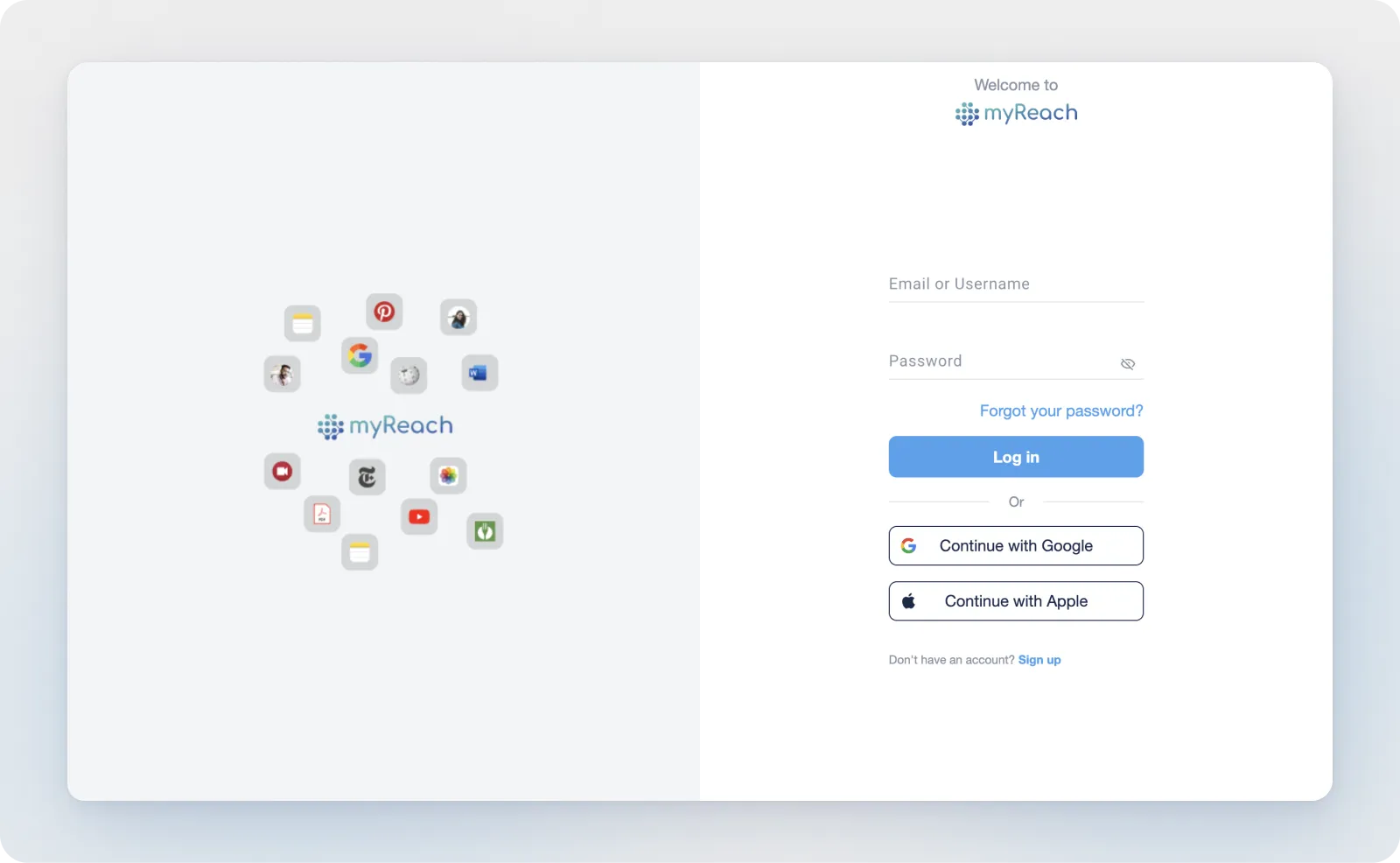
2. Provide Additional Information:
After confirming your email, you’ll be asked a few brief questions to enhance your myReach experience (your name and how you discovered myReach).
3. Create your First Workspace:
You will be prompted to name your first Workspace. Think of this as your primary "Brain". You can always create more Workspaces later to separate different projects or areas of your life. Learn more about Workspaces here.
4. Start Using myReach:
Congratulations! You're now ready to dive into the world of myReach.
Your 30-day free trial starts the moment you register, giving you full access to all AI features, including the Assistant and Genie creation.
Use myReach to centralise your digital knowledge, access AI-driven insights, chat with your information, create AI Agents and power your work.
If you need more help while getting started, you can check out our tutorial videos in the App (profile > tutorials) or on YouTube.
Pro Tip: The Power of Properties
Before you start importing thousands of files, take a moment to visit Settings > Properties. By setting up your properties early (like "Client Name" or "Project Phase") and enabling AI-Population, you ensure that your Knowledge Base is organised automatically from day one.
Browser Extension
We also recommend downloading the Browser Extension on Google Chrome or Firefox, for best use of the App on Web.
It's is the bridge between the internet and your Knowledge Base.
How does this help me?
While browsing on your computer, you can save any website you come across with a single click. No need to open the App and waste time or get distracted. It's just a keyboard command directly on your browser.
You can also save specific parts of a website by highlighting the text and right-clicking to save it as a Note in myReach. Find out more here.