Audio Transcription
Audio Transcription is the AI feature that converts spoken words from audio and video files into digital text. Once transcribed, these recordings stop being "silent" files and become fully searchable Nodes that the Assistant can read, summarise and query.
In myReach, transcription happens automatically as part of the Learning process for any supported media file.
A 45 minute tutorial video can now be replaced by a few questions to an AI-powered chat.
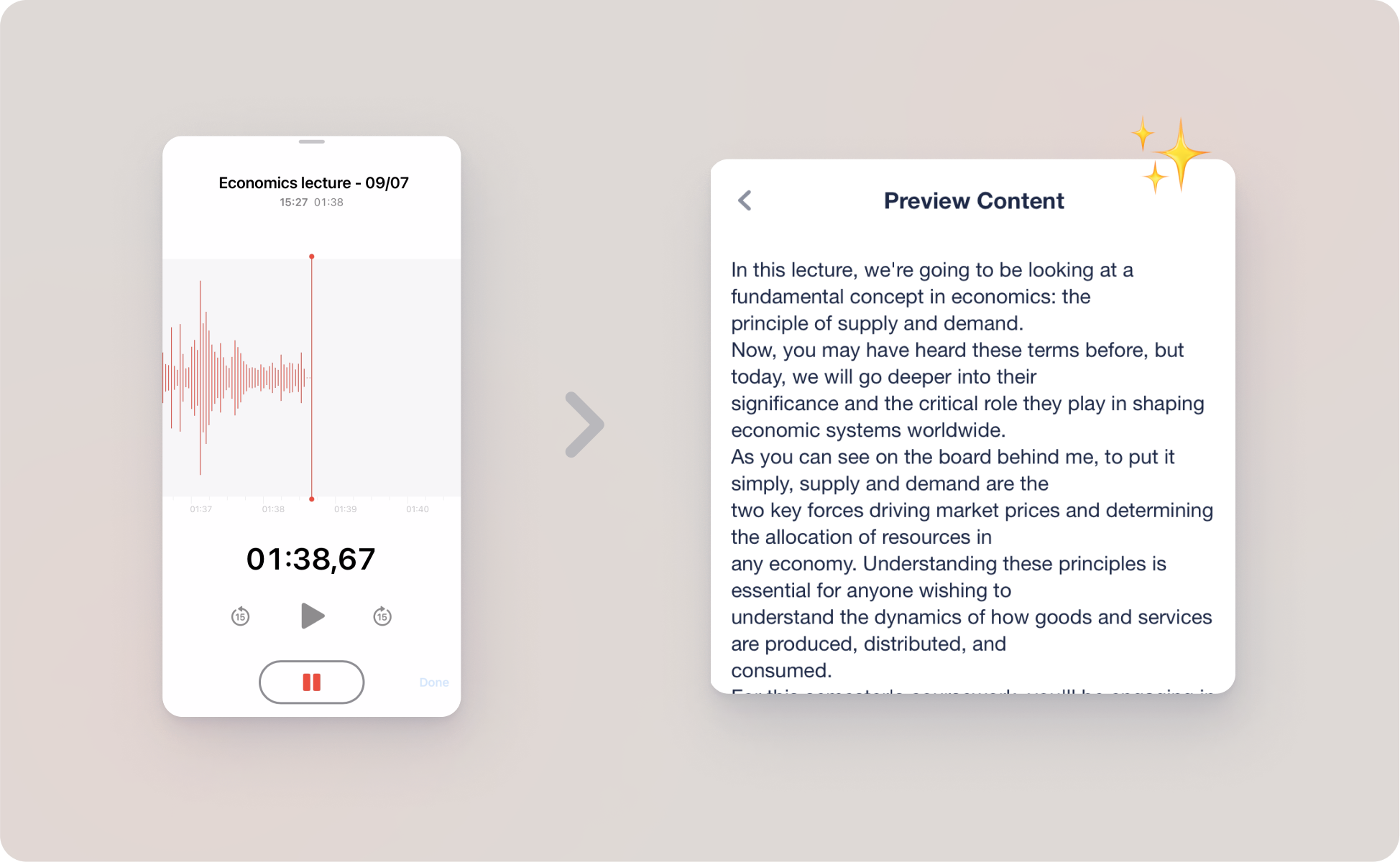
How it Works
When you save an audio or video file to myReach, the system automatically begins the extraction and transcription process.
SUPPORTED CONTENT
-
Audio Files: Upload recordings in formats such as MP3, M4A, WAV, OGG, etc.
-
Video Files: Upload MP4s or other common video formats.
-
Web Content: Save YouTube videos or links to hosted audio content.
A MULTI-STEP PROCESS
When you upload an audio or video file, or save a YouTube link, the AI begins a multi-step process:
-
Speech Recognition: The AI "listens" to the file and identifies the language being spoken.
-
Text Conversion: It generates a full-text transcript of the recording.
-
Indexing: The transcript is indexed into your Knowledge Base, allowing the Assistant to answer questions about the content of the audio.
VIEWING THE TRANSCRIPT
Once the AI has processed the file, you go straight ahead and ask questions to the Assistant, or view the full text of the transcript:
-
Open the specific Node.
-
Click the three dots (Options) in the top-right corner.
-
Select "Preview Extracted Content" to read the complete transcription.
Frequently Asked Questions
We’ve compiled some of the most common questions from our clients to help you get the most out of this feature:
Q: If I want to use podcast episodes as sources, do I need to provide the transcription?
A: No. If you upload the podcast as an MP3 or audio file, the system will automatically transcribe it for you. Once processed, the full text will be available in the "Preview Extracted Content" section of the node.
Q: Does the same apply to videos?
A: Yes. Whether it's a recorded Zoom meeting, a tutorial, or a YouTube video, myReach will extract and transcribe the audio automatically.
Q: How long does the transcription take?
A: Transcription is not instantaneous. The time required depends on the length of the file; for instance, a two-hour podcast will take longer to process than a five-minute voice note. You can check the AI Status in the Properties tab to see when the learning process is complete.
YouTube Intelligence
myReach treats YouTube links with special intelligence. Instead of just saving a bookmark, the AI fetches the video's audio, transcribes it and allows you to interact with the video's content.
-
Query a Video: Ask the Assistant questions like "What was the main argument in this TED Talk?" or "List the three steps mentioned in this tutorial video".
-
Convert to Note: You can take the full transcript of a YouTube video and convert it into a Note for further editing and highlighting.
Use Cases for Transcription
-
Meeting Intelligence:
Transcribe internal briefings or client calls to ensure no "next steps" are missed. Upload recordings of your team meetings to keep a searchable archive of everything discussed. -
Interviews & Research:
Summarise long industry podcasts or expert interviews without manual note-taking. Transcribe long interviews or webinars to quickly extract quotes and key data points. -
Training & Development:
Turn video tutorials into a searchable library where employees can ask, "How do I do X?" and get the answer from the video transcript -
Language Support:
The transcription engine supports multiple languages, allowing you to index international content easily.
Pro Tip
If you have a 60-minute recording or webinar, don't waste time listening to it all. Use the Assistant to "List the 5 key action points from this audio". The AI will read the transcript and give you the highlights in seconds.