Recommendations
Recommendations are AI-suggested connections that help you discover how different pieces of information in your Knowledge Base relate to one another. Instead of you having to manually remember every connection, the AI scans your data to find "hidden" links based on context, entities and themes.
These suggestions are found within the Relationships tab of any Node, marked with the lightning bolt (⚡) icon.
To access recommendations, go to the "Relationships" tab within a Node.
Find out more about recommended tags here.
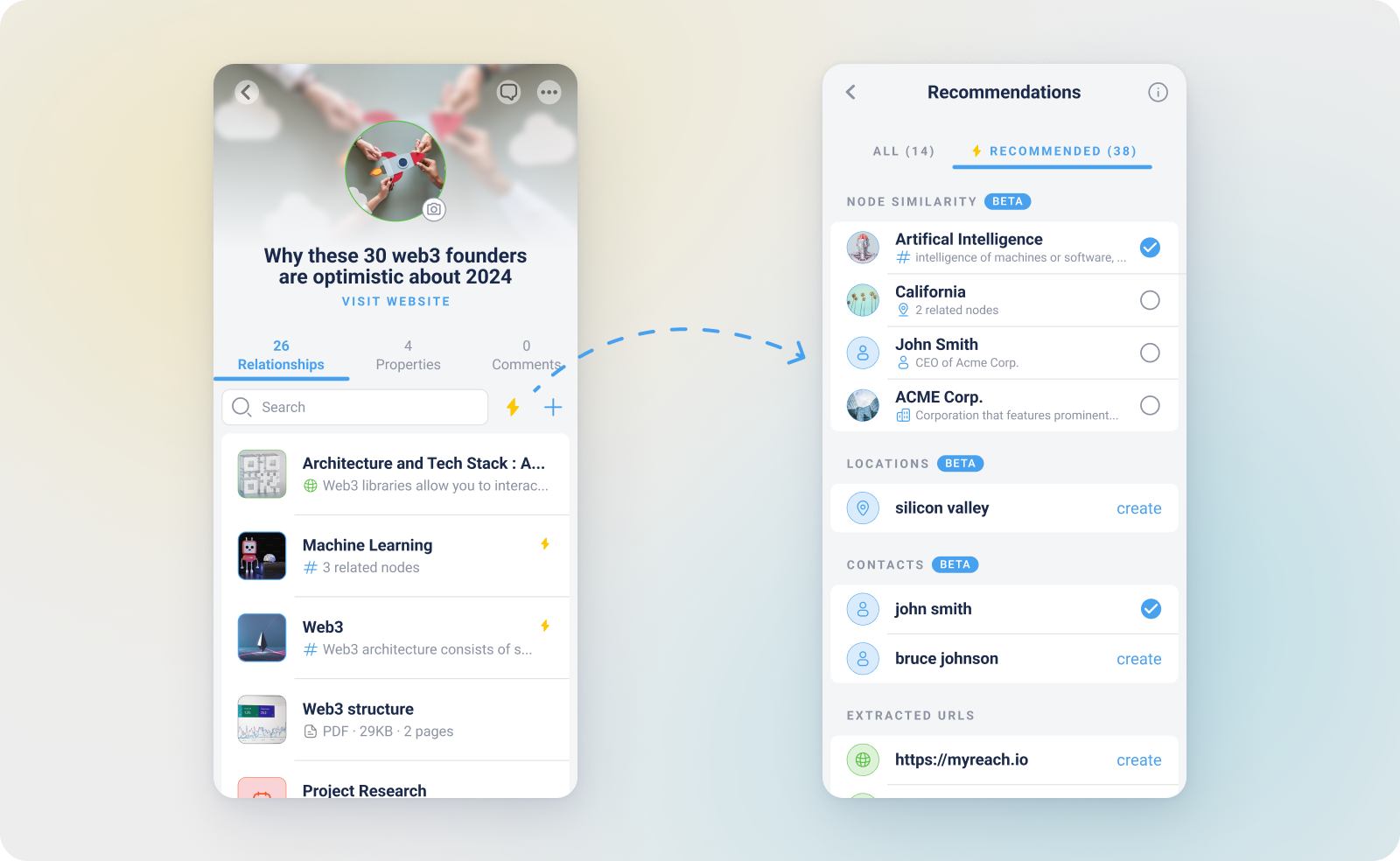
Types of Recommendations
The AI provides three distinct layers of suggestions to help you build your "External Brain":
1. Entity Recommendations
The AI identifies specific People, Companies, Places and Tags mentioned within the text of your Node.
-
The Benefit: If you upload a contract that mentions "Acme Corp", the AI will suggest relating that document to the "Acme Corp" Company Node.
-
One-Click Linking: You can accept these suggestions to instantly create a bi-directional relationship.
2. Node Similarity
This is based on the "meaning" of your content. The AI uses vector embeddings to compare the current Node against your entire Knowledge Base.
-
The Logic: If you are looking at a note about "renewable energy trends", the AI will recommend a PDF you saved six months ago about "solar power innovations" because they are semantically similar.
-
Similarity Score: You can see exactly how related the items are in the Similar Nodes tab.
3. Extracted URLs
The AI "reads" through your documents and identifies any web links (URLs) mentioned in the text.
- The Benefit: Instead of copy-pasting links from a PDF into your browser, the AI extracts them as separate Nodes. You can then choose to save these websites into your Knowledge Base with a single click.
How to Use Recommendations
-
Open a Node: Navigate to any file, website or note.
-
Go to Relationships: Click on the "Relationships" tab in the Node Info panel.
-
View Suggestions: The recommendations are organised by category, to the right of hte current Node Relationships.
-
Accept or Ignore: Click the "Create" button next to a recommendation to turn it into a permanent relationship, or ignore it to keep your graph clean.
Why Recommendations Matter
The true power of myReach is revealed in the 3D Visualiser. By accepting AI recommendations, you build a dense web of information. This allows the Assistant to provide more accurate "Deep Search" answers because it can follow the trail of relationships from one Node to the next.
Pro Tip
Check the recommendations for your Contacts. The AI will often suggest relating a person to the companies and projects they are mentioned in, effectively building an automated CRM based on your documents and emails.