Nodes: The building blocks of knowledge
A Node is any individual item saved in myReach. Whether it’s a PDF, a website link, a quick text note, a contact or a tag, every single piece of data is treated as a separate Node.
Nodes can be connected to each other to form Relationships, just like in your memory. You can also add Properties to nodes to classify, organise and find them faster.
Nodes are saved or created in Workspaces. Each node can be in a single Workspace or multiple Workspaces.
By treating all information types as Nodes, myReach allows you to connect disparate data points – like linking a contact to a company, and both to a specific contract – creating a web of information that mirrors how your memory actually works.
Node Sections
When you open a Node, you'll find several tabs that organise its metadata, content and intelligence.
These tabs make it easy to manage and work with your data, providing quick access to various aspects of your items and their related information.
Above the tabs, you can find a short description of the Node, as well as an indication of which Workspaces the Node is saved in. A Node can be in multiple Workspaces.
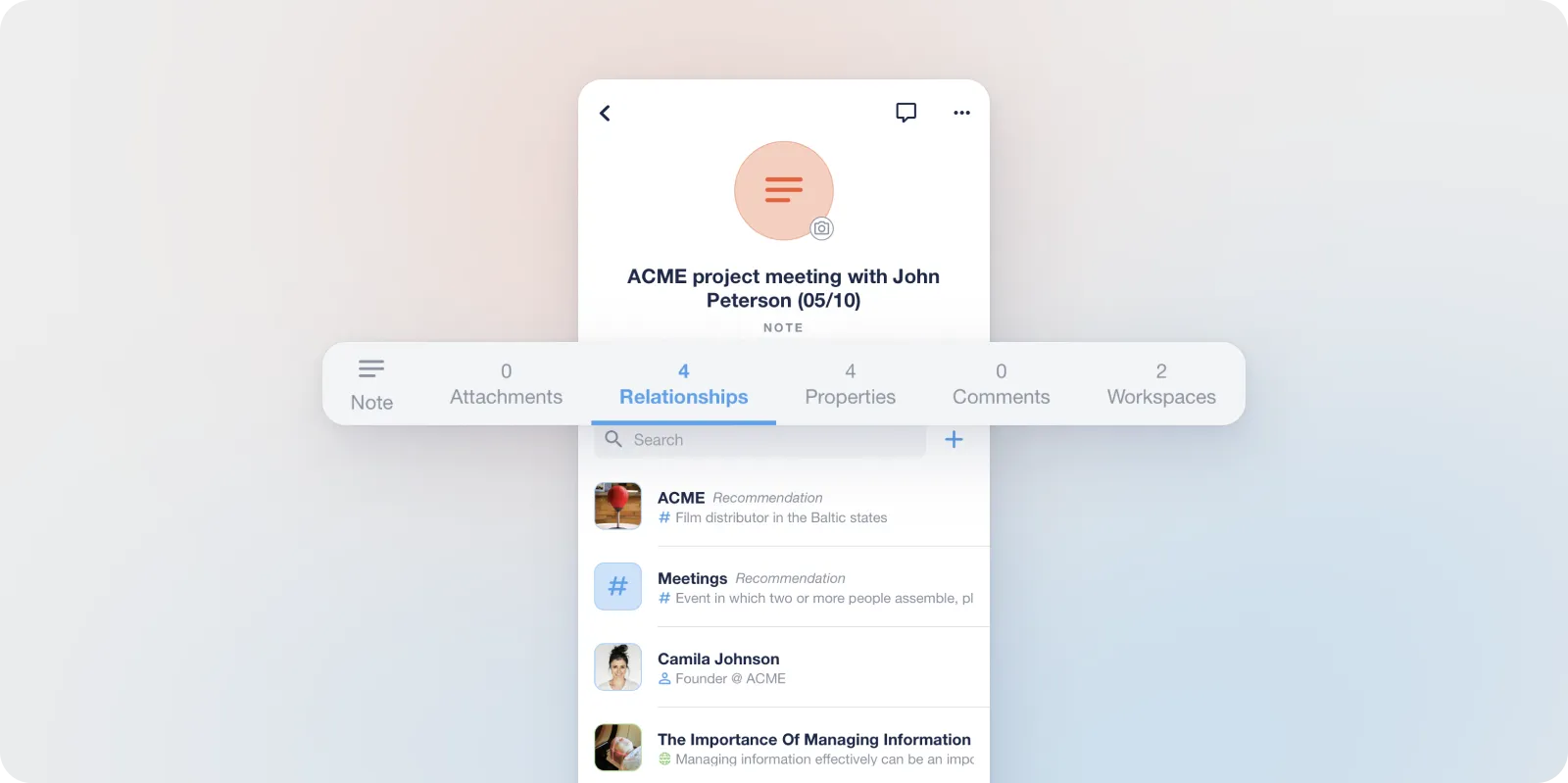
Here is a breakdown:
Relationships
View and manage the manual connections between this Node and others. You can add relationships using the "+" button.
The AI also gives suggested recommendations (using the ⚡️ emoji), based on Node similarity, locations, companies and content.
Items can be linked to data in the same Workspace, or in any other Workspace too.
Properties
Manage the metadata that makes your Node searchable. Some Properties are there by default and cannot be edited (creation date, file size, etc) while others are custom made by you (checkboxes, ratings, contract values, etc).
You can take it one step further and turn ON the "AI-populated" toggle in the Property's settings. When this toggle is ON, every time you add this Property to a node, the AI will automatically extract th erelevant information to fill it in. AI-populated Properties are marked with a purple star-like sign next to them.
Comments
A collaborative space to add notes, thoughts, feedback or reminders for yourself or your team regarding this specific item.
Similar Nodes
A dedicated space where the AI displays other items in your Knowledge Base that share contextual or semantic similarities. It also provides a % of similarity next to each listed Node. This is perfect for discovering related research you might have forgotten.
Attachments
(only for Notes) – Any files or documents you've attached to the note are listed here.