Board View
The Board View provides a Kanban-style layout for your Knowledge Base. It is the ideal choice for project management, workflow tracking and categorising your data into logical "buckets".
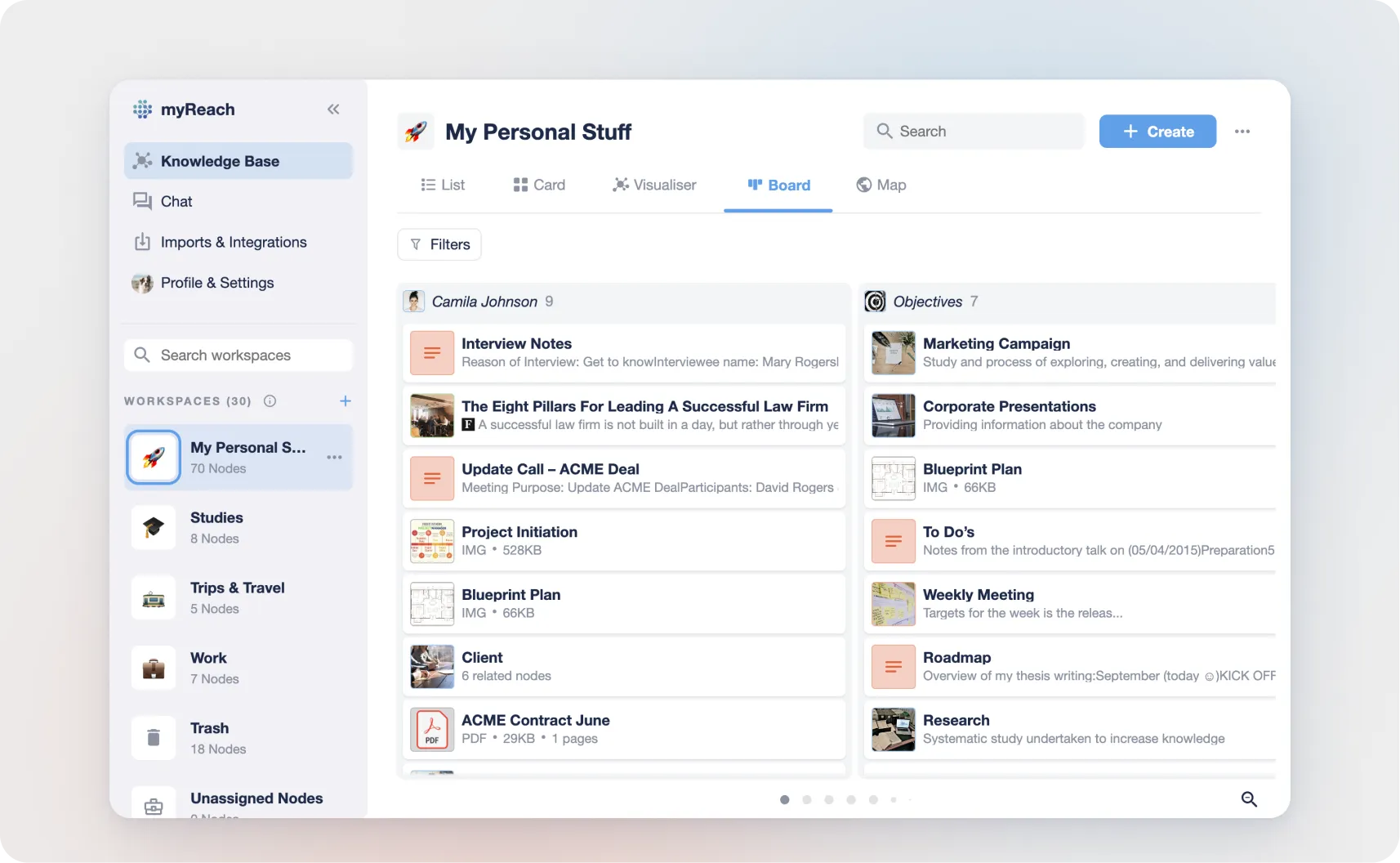
Instead of a simple list, this view organises your Nodes into vertical columns based on their relationships to specific Tags (Topics, People, Companies or Places).
How it Works
The Board View works by using your Tags as column headers:
-
Tag-Based Columns: Each column represents a specific Tag. For example, if you are in a "Project Management" Workspace, your columns might be "To Do", "In Progress" and "Done".
-
Automatic Sorting: Any Node that is related to one of these Tags will automatically appear as a card in that column.
-
Visual Hierarchy: The title of the Tag is fixed at the top, and all connected content (whether they are files, websites or notes) is listed underneath.
Navigation and Interaction
-
Zooming: If your board has many columns, use the magnifying glass icon in the bottom right corner to zoom out. This provides a bird's-eye view of your entire workflow.
-
Drag and Drop: You can move Nodes between columns to update their relationships. For example, dragging a Note from the "Ideas" column to the "Approved" column will automatically remove the "Ideas" tag and add the "Approved" tag to that Node.
-
Filtering: Like all other views, you can apply Filters to your Board. This allows you to see only "High Priority" items across your various project columns.
Best Use Cases
-
Project Management: Track the status of tasks and documents as they move through a pipeline.
-
Content Planning: Organise your research notes by "Topic" or "Source Type" to see where you have the most information.
-
CRM Management: Create a board where columns represent different "Stages" of a sales lead, and each card is a Contact or a Meeting Note.
-
Meeting Preparation: Group your files by "Agenda Item" to ensure you have all necessary documents ready for each part of a meeting.