Workspaces
What are workspaces?
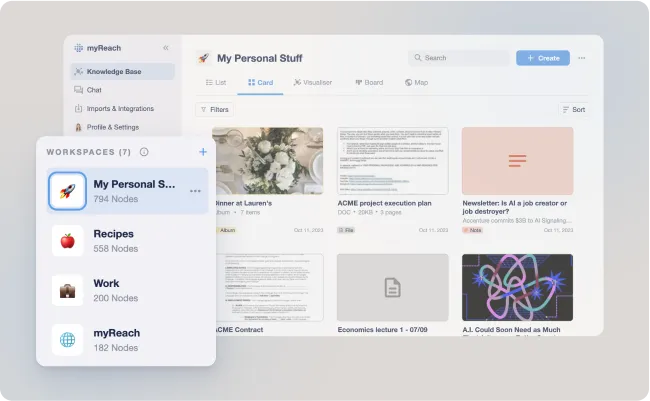
Workspaces are the primary structural units of myReach. They act as dedicated environments to separate different departments, clients, or projects (ex: Legal, Marketing, Project ACME, Q3 Research).
Unlike traditional folder systems, Workspaces in myReach are dynamic. They define the boundaries of your knowledge base, allowing you to control exactly which data is accessible to your teams and your AI Genies (agents).
KEY CONCEPTS
- Departmental Silos:
Use Workspaces to keep confidential HR data separate from general marketing materials.
-
Multi-Assignment:
A single node (ie. file, note or website) can exist in multiple Workspaces simultaneously. This ensures that a "Company Policy" document is accessible in both the HR and Onboarding Workspaces without creating duplicates. -
AI Boundaries:
When you chat with the Assistant or a Genie, the Workspace provides the context, ensuring the AI only draws from relevant information.
Workspace Types & Creation
When you're in the "Knowledge Base" (on the left sidebar menu), you can create a new Workspace via the blue "+ Create" button on the top right of the screen or the "+" icon in the side menu.
-
Blank Workspace: Start with a clean slate by simply providing a name. Perfect for manual organisation or internal project hubs.
-
Integrated Workspace: Create a Workspace directly from a connected tool (e.g., Google Drive or SharePoint). myReach will automatically name the Workspace and import its contents, maintaining your existing data structure. A separate Workspace is created for each new integration. You can sync it so any changes in the original source (ex: any changes in SharePoint) are updated and reflected in myReach. Click here to learn more about integrations.
Default Workspaces
There are two essential / default Workspaces:
-
Trash: Contains all deleted Nodes. From here, you can restore items or permanently delete them.
-
Unassigned: The landing spot for any data not yet categorised. If you delete a Workspace, its contents are automatically safely moved here.
Workspace Management
Clicking into a Workspace provides a high-level overview and customisation options:
-
Nodes List: A complete view of all information contained within that space.
-
Workspace Properties: Track metadata specific to the space, including Default Properties (ex: creation date, modified date, description) as well as any other properties defined by the user (project deadline, price, or any custom descriptions).
-
Change Cover Picture: Customise the visual identity of the Workspace for quick recognition in your sidebar.
-
Go to Integration: For integrated Workspaces, jump directly to the source tool to manage your imports and sync settings.
-
Copy Node URL: Quickly share the direct link to the Workspace with another registered team member.
-
Delete: If you no longer need the Workspace, you can delete it. This ensures that your myReach environment remains organised and clutter-free. All the nodes that are unique to that Workspace will be moved to the "Unassigned" Workspace. Any nodes that are in other Workspaces as well will remain in those Workspaces. Essentially, the Workspace is deleted, not the content in it.
Shared Workspaces
You have the ability to collaborate on your knowledge. Shared Workspaces allow you to distribute your curated data to team members or external partners seamlessly.
-
How it Works:
Select a specific Workspace and generate a unique join-code. -
Seamless Access:
Others can enter this code to incorporate your Workspace into their own myReach account. -
Real-time Updates:
Any changes you make (such as adding new files, updating notes, or adjusting properties) will be automatically updated in the accounts of all shared members.
📝 PLEASE NOTE
Shared Workspaces is a custom feature designed for organisations managing multiple teams. If you require access to Workspace Sharing, please contact our support team.