Customise message categories
AI Categories are a fundamental part of the myGenie ecosystem. They allow you to automatically classify and organise incoming user messages in real-time. By defining specific categories, you can gain deep insights into what your users are asking, identify knowledge gaps and guide them toward the most relevant information using automated follow-up questions.
These categories are strictly for internal organisation and analytics – your users will never see the category names. You can monitor their performance in the Chats section or deep-dive into the data via the Statistics dashboard.
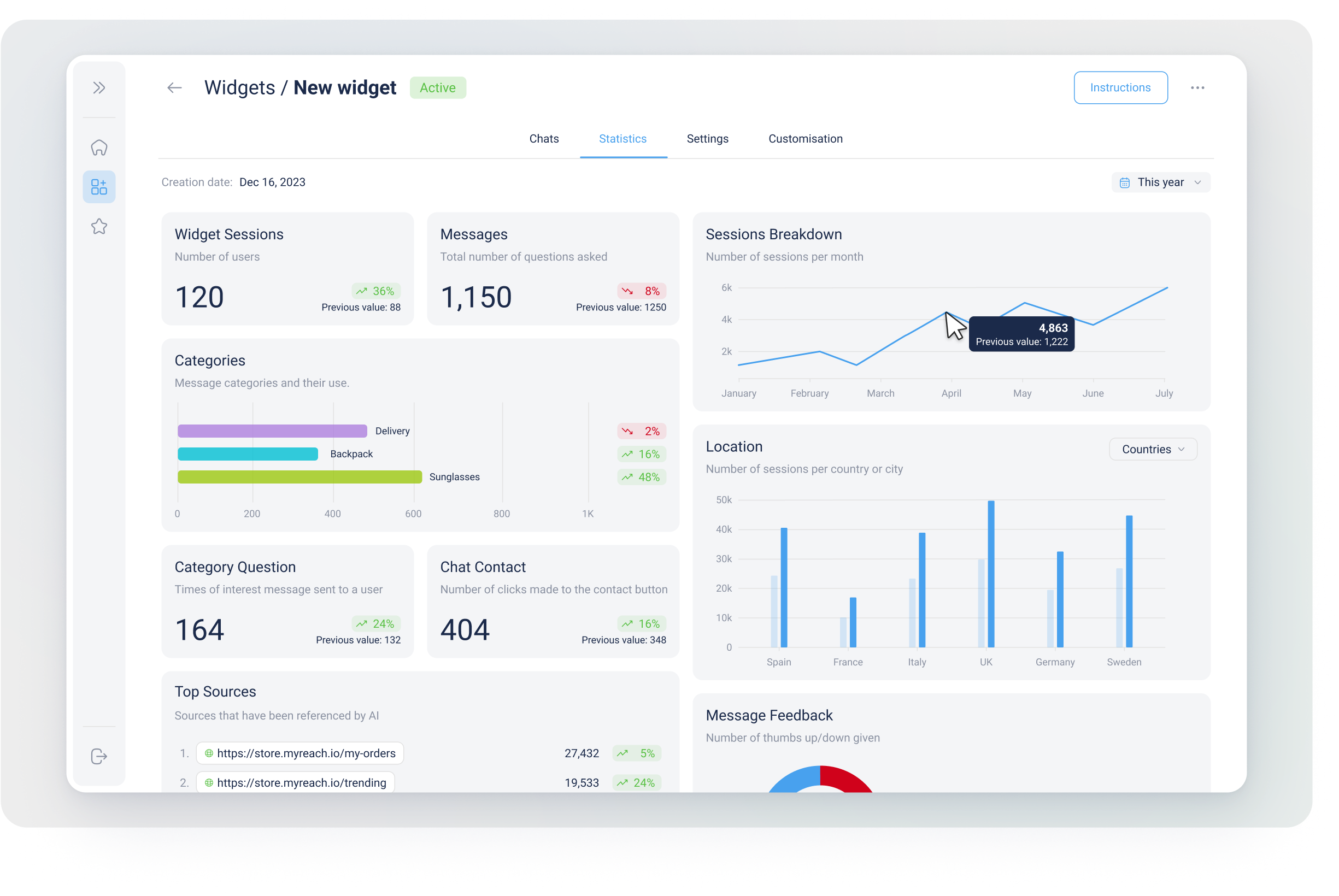
By automating the classification of user intent, you and your team can move from passive monitoring to proactive engagement.
Key Functionalities
-
Intelligent Classification: The AI uses the category description you provide to detect and sort messages automatically.
-
Category Prioritisation: You can reorder your categories via a simple drag-and-drop interface. The category at the top takes priority; if a message fits multiple criteria, the follow-up logic will follow the highest-ranked choice.
-
Multi-Category Mapping: Messages can be assigned to multiple categories simultaneously, allowing for more nuanced analytics and a better understanding of complex queries.
-
Interactive Follow-Ups: Beyond answering a question, Categories can trigger proactive engagement. You can set specific follow-up actions that appear after a user has asked a set number of questions in that category.
Customising Your Categories
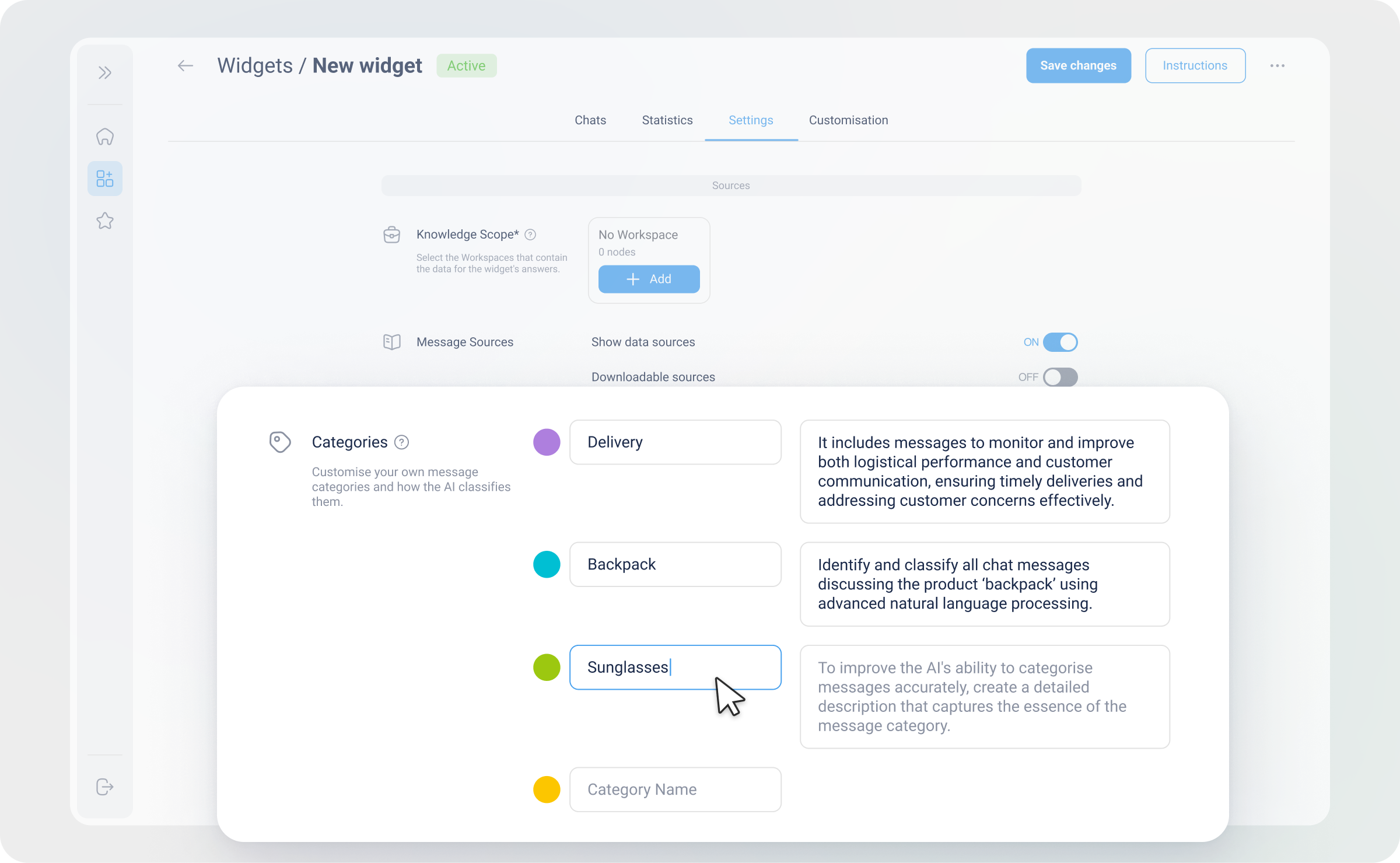
To set up or edit your categories, navigate to the AI tab in your Genie dashboard and select Categories from the sidebar.
Step 1: NAME AND DESCRIPTION
The accuracy of your analytics depends on the quality of your category definitions. Provide a clear and highly detailed description to help the AI identify user intent correctly. The AI relies entirely on this description to identify which user messages belong to the category.
- Example 1 (Shipping and Delivery):
All questions related to shipping costs, policies, delivery times, or tracking information.
- Example 2 (Subscription Plans):
Any question regarding subscription tiers, pricing, billing, or cancellations.
- Example 3 (Agent):
Detects if a user is explicitly asking to speak to a human representative.
- Example 4 (Complaints):
Analyse the tone of voice and sentiment of the user to detect dissatisfaction, frustration, or criticism.
2 . Configure Follow-Up Actions
If a user's query triggers a category, you can enable a follow-up interaction. You can choose to display these after a certain Frequency (e.g., after the user asks 2 questions about "Pricing").
Follow-up options include:
- Text Message: A custom automated response.
- Email Input: Prompts the user to leave their contact details for further assistance.
- Interactive Buttons: Provide multiple buttons to direct users to specific links, external resources, or other sections of your site.
You can create up to 10 categories.
Step 2: FOLLOW-UP QUESTIONS & EMAIL NOTIFICATIONS
Once the AI identifies a category for a message from a user, you can trigger a specific follow-up interaction. This is where you can bridge the gap between AI automation and human intervention.
Follow-Up options include: 1. Message Only: A simple text prompt to keep the conversation moving (e.g. "What else would you like to know about our Premium plan?").
-
Show Email Input: Prompts the user to leave their email for further assistance (e.g. "Please leave your email and one of our agents will be in touch with you shortly").
-
Email Notifications: You can enable a toggle to receive an immediate email notification when a user provides their details.
-
Transcript Included: The notification email includes a full transcript of the conversation so your team has complete context before reaching out.
-
Routing: You can choose to send this notification solely to your team or as a confirmation to the user as well.
-
-
Show Button: Provides a clickable button to redirect users to an external link, such as a checkout page or a technical manual (e.g. "I see you're interested in our SS26 Collection, click the button below to see more products from the collection").
Step 3: FREQUENCY
The Frequency setting determines how often the follow-up question appears.
-
Logic: You define how many questions a user must ask about a specific category before the AI triggers the follow-up message.
-
Recurrence: This is a recurring feature. If a user continues to ask questions within the same category, the AI will re-trigger the follow-up action after every X amount of questions, ensuring the call-to-action remains visible.
💡 EXPERT TIP:
Detailed descriptions are the key to success. Instead of just naming a category "Shipping" add a detailed description such as "Questions regarding delivery times, international shipping costs and tracking numbers".