Node Categories
Node Categories are a powerful organizational feature that allows you to label and group your information within myReach. By assigning categories to different nodes, you can structure your knowledge base in a way that makes information easy to find, manage, and scale.
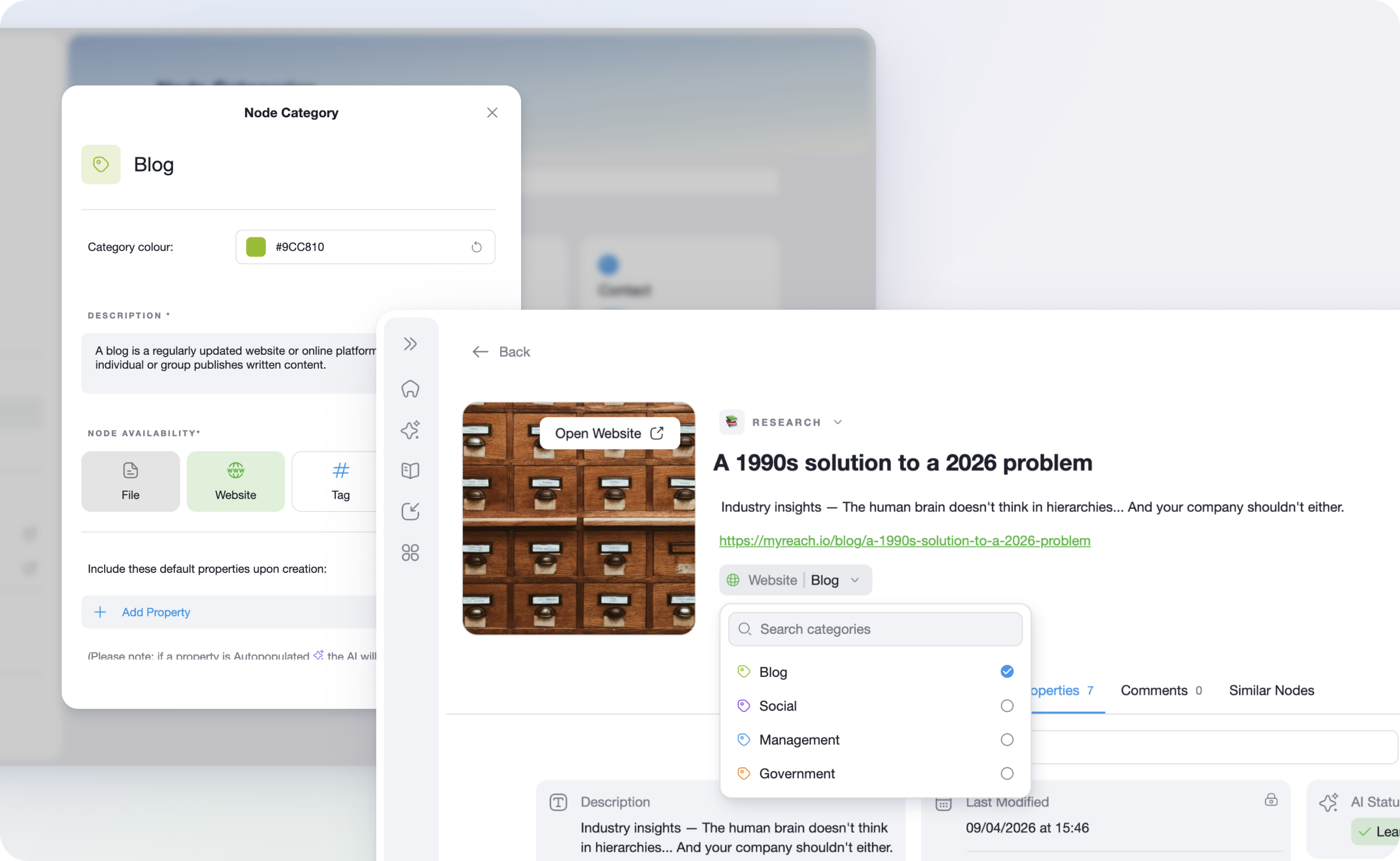
Default Categories
To help you get started quickly, myReach provides a set of default categories that are automatically available in the app.
- Each information type comes with a pre-built default category named after it
- No setup is required — your nodes are organized from day one
- Default categories provide an immediate structure without starting from scratch
Custom Categories
Every team has unique needs, which is why Node Categories are fully customizable.
Creating a Category
- Navigate to the Node Categories section in your settings
- Assign a name that reflects the type of information (e.g., "Meeting Notes", "Client Projects")
- Add a description to clarify what the category represents
Key Features
| Feature | Description |
|---|---|
| Descriptions | Define what each category represents to guide the AI |
| Automatic Assignment | AI automatically assigns new nodes to the correct category based on your description |
| Custom Properties | Add specific fields such as "Client Name", "Project Deadline" or "Budget" to every node within that category |
Best Practices
- Be descriptive — the more detail you provide in your category description, the more accurately the AI will assign nodes automatically
- Use properties — adding relevant properties ensures every node contains consistent and useful context
- Review regularly — periodically audit your categories to ensure they still reflect your team's workflow
Example Use Cases
- HR Team: Create a "Company Policies" category with properties like "Last Updated" and "Department" to keep policy documents organized and current
- Sales Team: Use a "Client Projects" category with "Client Name" and "Deal Stage" properties to track client-related information
- Project Managers: Build a "Meeting Notes" category with a "Project" and "Action Items" property to capture decisions and next steps consistently