Integrating myGenie with Microsoft Teams
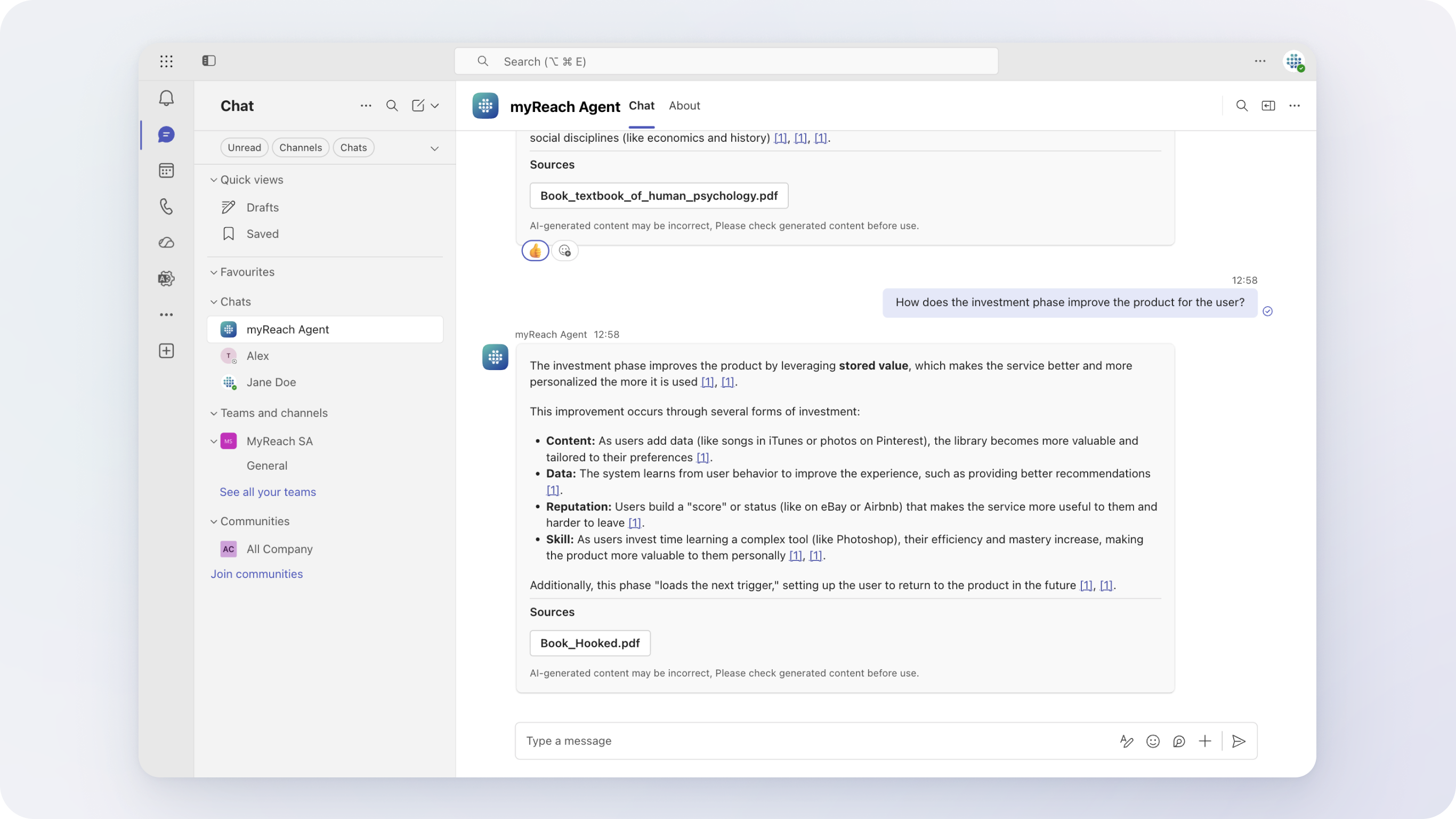
Bring your Genie directly into Microsoft Teams and make AI-powered assistance available to your team within the platform they use every day. Once connected, your team members can interact with your Genie as an AI Assistant inside Microsoft Teams, without needing to leave their workspace.
⚠️ Note: If you don't see the Microsoft Teams integration, contact us at > contact@rea.ch to be added to our testers.
Steps to Integrate myGenie with Microsoft Teams
Step 1: Go to Integrations
- In your Genie dashboard, navigate to the Settings tab and click on Integrations from the sidebar.
- Scroll down to the Microsoft Teams section.
Step 2: Connect Your Microsoft Account
- Click the Connect button. This will prompt you to sign in to your Microsoft Teams account to connect to the tenant.
- Once successfully signed in, the Connect button will change to Connected, confirming the integration is active.
⚠️ Note: Since Microsoft Teams requires administrator permissions, your tenant administrator must grant the necessary permissions. A unique link will be provided on the integrations page — send this link to your tenant administrator to complete the approval. The administrator does not need to sign in to myReach after consenting.
Step 3: Find the myReach AI Assistant in Microsoft Teams
- Open Microsoft Teams.
- Go to the Apps section and search for myReach AI Assistant.
- Add the myReach AI Assistant to your workspace to start interacting with your Genie directly within Microsoft Teams.
Benefits of the Integration
- AI Assistance in Your Daily Workflow: Your team can query the Genie directly inside Microsoft Teams, without switching between tools.
- Instant Knowledge Access: Get immediate, AI-powered answers from your company's knowledge base within any Teams conversation.
- Seamless Collaboration: Keep your entire team aligned by making your Genie accessible in the platform where collaboration already happens.